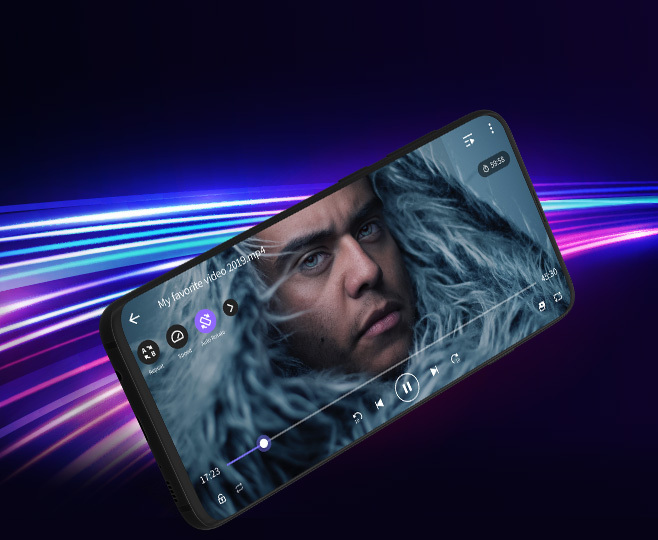
KMPlayer - Media Player for Android/iOS
- No.1 Free Media Player App
- Plays all formats with extensive features
- ㆍ Sharing via Wi-Fi (wireless file transfer) : Connect your mobile and PC to the same Wi-Fi network, and with a simple click on your device, you can easily transfer files.
- ㆍ MyList : Create and play your own playlist.
- ㆍ Quick Button : Using Quick Button, you can use various functions easily.
- ㆍ Subtitle Setting : Set the subtitle size, color and position.
- ㆍ Timer : Use the timer to end the video when you want.
- ㆍ Equalizer : Enjoy rich audio with equalizer.
- ㆍ Search : Search videos and music what you want.
- ㆍ New Network Play : Network functions such as SMB, FTP, and UPNP have been enhanced.
- ㆍ New Cloud Play : Cloud function has been enhanced.
- ㆍ Zoom & Move : Enjoy the video zoom and pan function.
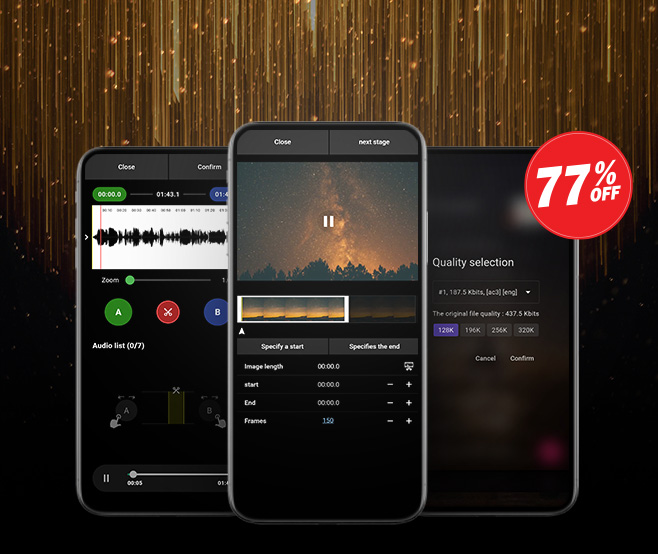
KMPlayer APP - Premium Features
Android
- KMPlayer gets you Premium.
- Enjoy more special features with Premium.
- ㆍ Magnet Client: You can play real-time while downloading.
- ㆍ GIF Toast : Create dynamic pictured GIF from your favorite video to select as you want.
- ㆍ Crop Media : You can cut the desired section by selecting the media.
- ㆍ MP3 Converter : You can extract form video's audio to MP3 converter.
- ㆍ Special features will be added for Premium.
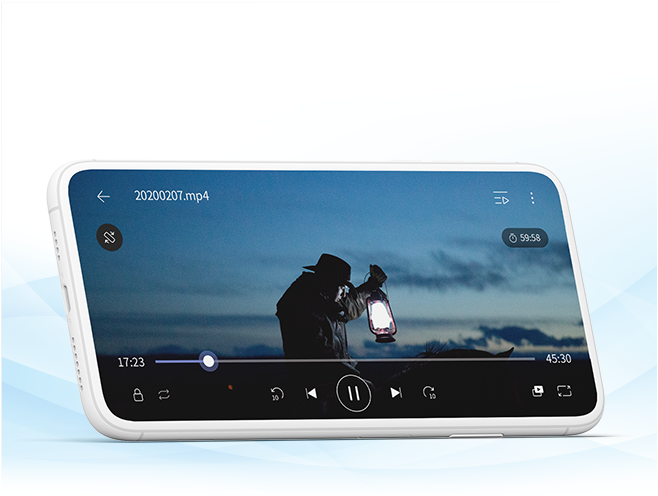
KMP - Best Video Player for Android
- Perfect Video Player for Android
- Lightweight video player optimized for efficient performance with a clean interface!
- ㆍ Universal application : It can be played in tablet or smartphone everywhere you wanted.
- ㆍ Screen Setting : Zoom in/out, reversal(mirror mode & upside down)-you can setup your screen with dynamic performance.
- ㆍ Section Repeat : Can play A-B section repeatedly.
- ㆍ Speed control : From 0.25x slower to 4x faster, you can adjust the playback speed
- ㆍ Subtitle : Enjoy the freedom of subtitle-color, location and size.
- ㆍ Equalizer : Provide equalizer for more realistic play.
- ㆍ Background Play : Can played the video in background.
- ㆍ URL(streaming) Play : You only need to enter URL to play YouTube on KMP.
- ㆍ External storage : KMP automatically scan all video file in your device and SD card.
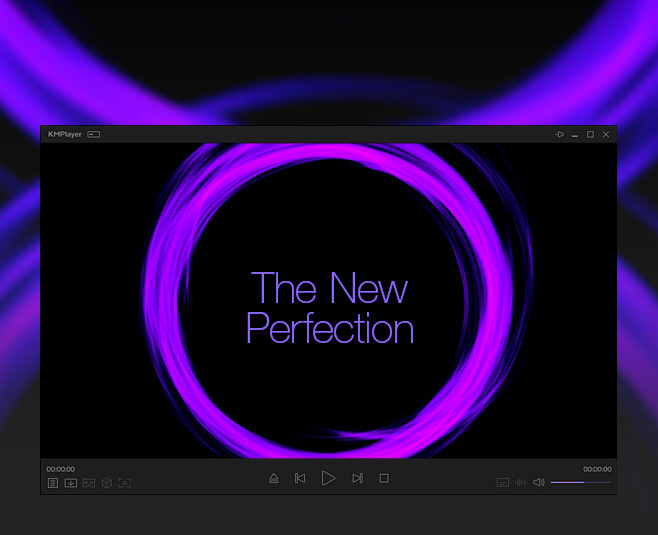
KMPlayer 64X - Media Player for PC 64bit
- Free Media Player for PC with No Advertisements
- You can enjoy high quality videos such as 4K, 8K, UHD, 60FPS.
- ㆍ It can play all high quality video including 4K, 8K, UHD, 60FPS
- ㆍ Various media file format support
- - AVI, MPEG, TS, MKV, MP4, WEBM, MOV, 3GP, 3G2, FLV, OGM, RM, WMV, MP3 etc.
- ㆍ Equipped with high quality Video Renderer
- ㆍ Downloading videos such as YouTube, Instagram, Daily Motion
- ㆍ Upgraded music player
- ㆍ Optimized for low-end PC through hardware acceleration function
- ㆍ Capture video in your desired section and desired format (including GIF)
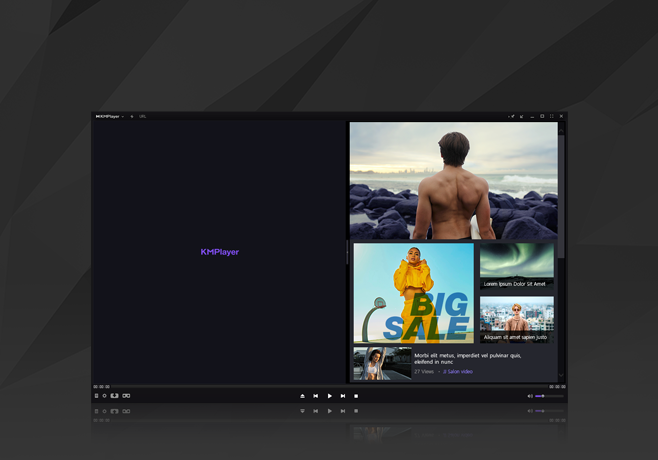
KMPlayer - Video Player for PC (32bit & 64bit)
- Free Video Player for PC
- Video player that has been loved worldwide for over 20 years
- ㆍ Equipped with video and audio quality function
- - video: Hardware acceleration settings, additional external codecs, etc.
- - Audio: EQ, Preset, Normalize, etc.
- ㆍ Supports all video, audio and subtitle files
- - RTS, MPEG1, MPEG2, AAC, WMA7, WMA8, OGG, etc.
- ㆍ Support 3D video playback function
- - RTS, MPEG1, MPEG2, AAC, WMA7, WMA8, OGG, etc.
- ㆍ URL streaming function such as radio, YouTube
- ㆍ Capable of capturing in desired section and desired format (including GIF)
- ㆍ Content & Advertisement
